
Cloud Account
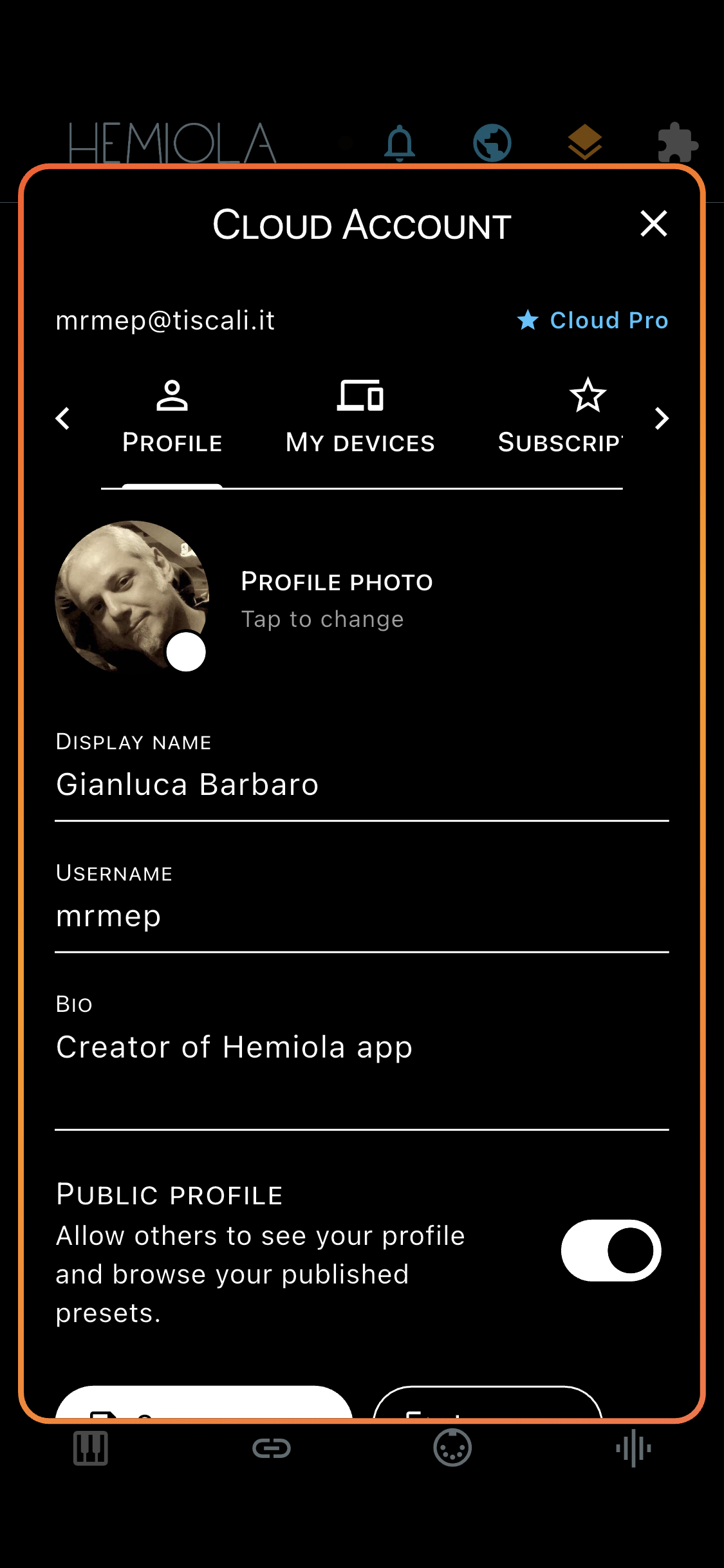
Sign in or create an account directly from the Home screen by tapping the account icon. An active cloud subscription unlocks additional features and supersedes the one-time app purchase for as long as the subscription is maintained.
Subscription Tiers
| Feature | Free App | Pro App | Cloud Free | Cloud Pro |
|---|---|---|---|---|
| Piano Keyboard | ✓ | ✓ | ✓ | ✓ |
| Drum Pads | ✓ | ✓ | ✓ | ✓ |
| Analog & SoundFont Synths | ✓ | ✓ | ✓ | ✓ |
| Step Sequencer | ✓ | ✓ | ✓ | ✓ |
| Presets per section | 3 max | Unlimited | 3 max | Unlimited |
| Preview Community Presets | ✓ | ✓ | ✓ | ✓ |
| Download Community Presets | — | ✓ | — | ✓ |
| Share your presets | - | - | - | ✓ |
| Config Tool & MIDI (mobile) | ✓ | ✓ | ✓ | ✓ |
| Config Tool & MIDI (desktop) | — | — | - | ✓ |
| Live Mode (mobile) | — | ✓ | — | ✓ |
| Live Mode (desktop) | — | — | — | ✓ |
| Settings backup | — | — | Latest only | ✓ |
| Backup snapshots | — | — | - | Up to 10 |
| Multi-device sync | — | — | Up to 2 | Up to 5 |
App Pro = one-time in-app purchase. Cloud Pro is a recurring subscription (monthly or annual). An active cloud subscription grants at least Pro-level app features on all platforms — including desktop — for the duration of the subscription. If the subscription lapses, the tier reverts to the last purchased one-time level.
Account Management
- Profile tab: edit your display name, profile photo, and public profile settings — enabling public profile allows the community to see your shared presets
- Subscription tab: view your current tier, view and manage your subscription
- My Devices tab: lists all devices registered to your account with their last-seen timestamp
- Backup tab: view the current backup status, back up now, or restore from the latest snapshot (Cloud Free) — or configure the automatic backup interval and manage multiple snapshots (Cloud Pro)
- Shared Presets tab: manage your published presets (edit, hide, or delete). Requires Cloud Pro
- Login tab: optionally save credentials securely on the device for faster sign-in; saved credentials are shown with a dedicated indicator and can be removed with Forget Credentials
- Password reset and account deletion are available from the account page
Shared Presets
Publish your current Sound or device settings as a community preset so other users can browse and download it. Requires Cloud Pro.
- Enable Public Profile (Profile tab) to make your published presets visible to the community — presets marked public but with a non-public profile show a warning icon
- Each published preset can be hidden (without deleting it) or deleted permanently from the Shared Presets tab
- You can edit the name, description, and hashtags of a published preset at any time
The profile is refreshed automatically each time you switch tabs in the Cloud Account dialog, so changes made on another device are always reflected.
Settings Backup
Cloud backup of your settings and presets, configurable from the Cloud Account dialog → Backup tab. Cloud Free: manual backup, latest snapshot only. Cloud Pro: automatic backup with configurable interval and up to 10 snapshots.
- Automatic Backup interval (Backup tab): choose Disabled, As Soon As Possible (30 s), After 5/15/30 min of inactivity, or After 1 hour of inactivity. The backup fires after the selected quiet period following the last change — not on a fixed schedule
- Only the differences since the last backup are transmitted (delta backup), keeping uploads fast and bandwidth-efficient. The baseline persists across restarts, so no redundant upload is made at app launch if nothing has changed
- Each backup creates a named snapshot. Browse the full history and restore any previous state from the Backup tab
- Backups are per-device: each registered device has its own independent backup history
Manual backup is also available from the Backup tab at any time. After a restore, the next automatic backup is always a full upload to reflect the restored state.
Device Registration
Each device running Hemiola is automatically registered to your account when you sign in with an active Cloud subscription. Registration enables per-device backup and lets you manage your devices via the cloud.
- Devices are identified by a unique UUID generated and stored locally on the device
- The device name is set automatically based on the running platform
- Tap any device in the My Devices list to open Device Settings, where you can rename the device, or access Pro device management features
- If you uninstall and reinstall the app, or install on a new device, a new UUID is generated and the device appears as a new entry in your account
- Cloud Free accounts can register up to 2 devices; Cloud Pro accounts can register up to 5. If you reach the limit, remove an existing device from My Devices before signing in on a new one
Cloud Free users who reach the 2-device limit are prompted to remove a device or upgrade to Cloud Pro (which allows up to 5 registered devices).
Device Management (Cloud Pro)
Cloud Pro subscribers can manage their devices directly from Device Settings.
- Delete Device: permanently remove a device and all its cloud backups from your account. This cannot be undone
- Transfer Presets: selectively copy presets between two devices. Choose the direction (from or to this device), then pick preset groups and individual presets to transfer. Name conflicts are resolved automatically by appending the source device name in parentheses
- Clone: completely replicate one device's configuration onto another. Choose the direction, then select Full Clone (settings + all presets) or Presets Only. Both modes overwrite the target — a double confirmation is required
After a reinstall or on a new device: sign in, then open Device Settings for the old device and use Clone to restore your previous settings and presets.