
MIDI Devices
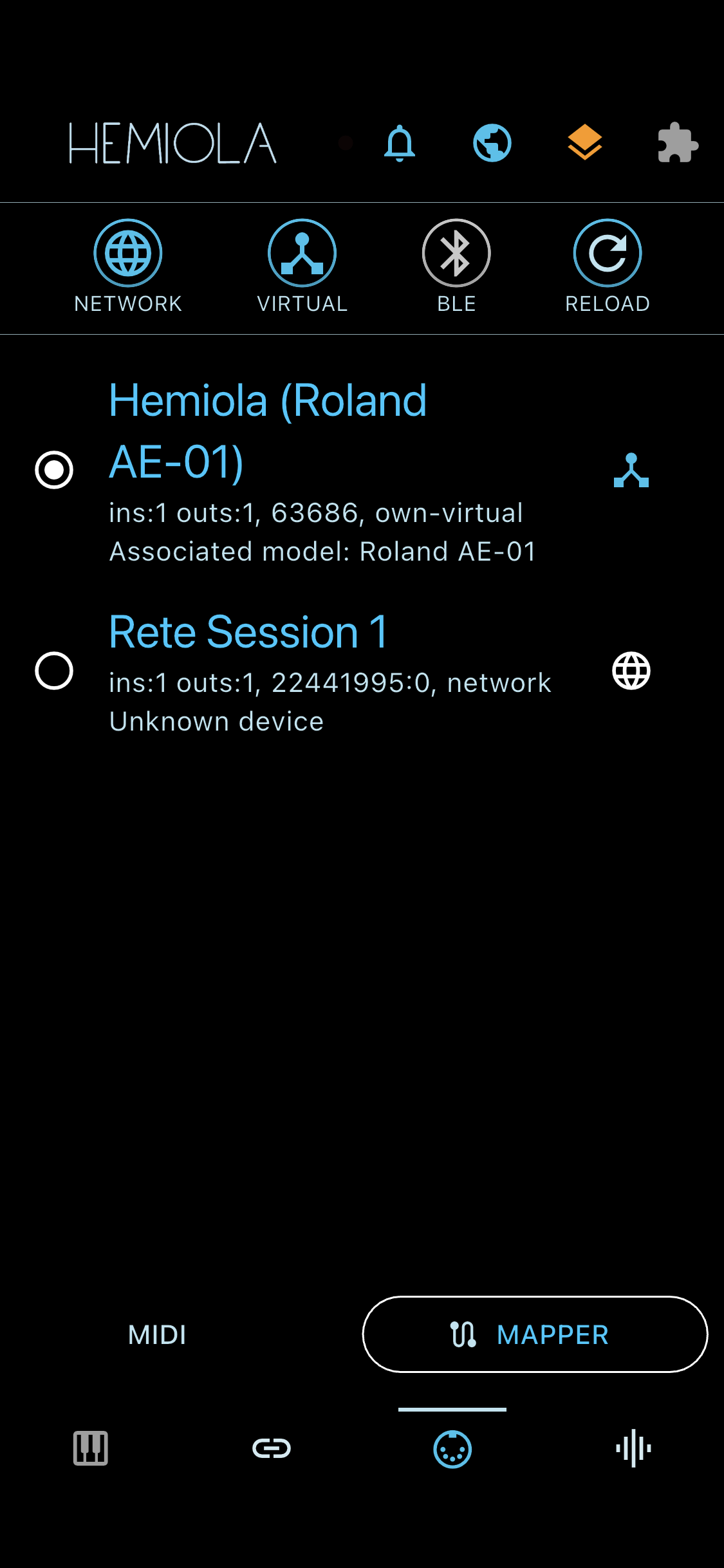
The MIDI Device Manager lists all available MIDI devices. Tap a device to connect or disconnect it.
- Bluetooth devices: BT scanning is off by default; tap the BT icon and grant permission to scan
- Network switch (iOS/macOS): enables Network MIDI sessions
- Virtual switch: enables a virtual MIDI port (availability depends on platform)
- Reload button: fully shuts down the MIDI subsystem and restarts it — useful if devices are not detected or the MIDI stack appears stuck. Last-known devices are reconnected automatically.
Use the bottom bar buttons to access MIDI Mapper. Some general MIDI settings are also available in the main Settings window.
General MIDI preferences (SoundFont/Analog channel, MIDI Thru, Pitch Bend Range) are configured in the Preferences dialog. See the Settings section for details.
MIDI Mapper
Lets you control Hemiola parameters via MIDI. Mappings are organised in three categories:
- User — custom mappings you create to forward or transform MIDI messages
- Synth — built-in mappings for Sound Generator parameters (volume, oscillators, effects, etc.)
- UI — built-in mappings for interface controls (show/hide sections, tab switching)
- Tap an entry to activate or deactivate it
- Use the toggle buttons to filter the list by category; "activate all visible" applies to the filtered set
- Add custom mapping: define name, in/out channel, command, and data; tap the settings icon to edit or delete
- Test Mode (ear icon): when enabled, incoming MIDI messages are not executed but instead the matching mappings flash three times and the list scrolls to show them. Useful for verifying your external controller setup.
Wildcards & Device Filters
The MIDI Mapper acts as a powerful router and rewriter. You can use 'OMNI' and 'ANY' values to match multiple messages, and 'SAME AS IN' to pass them through unchanged:
- Device Filters: restrict a mapping to listen from or send to a specific connected device, or leave as 'ANY DEVICE' / 'ALL DEVICES'.
- Channel/Command: set the input to 'OMNI' or 'ALL MSGS' to intercept any incoming stream, and set the output to 'SAME AS IN' to preserve the original property.
- Data 1: enter '-1' to match any note or CC value, passing it through dynamically.
Long-tap the Add button to reset all mappings to defaults and delete all custom entries.
MIDI Autopilot
Two independent autopilot modes can be toggled separately in Settings → General:
- Controls Autopilot: the app automatically switches tabs and scrolls to the affected controls when MIDI parameter changes are received through built-in mappings.
- Keyboard Autopilot: when a MIDI note-on reaches the synth, the app switches to the piano tab and scrolls to show the played note.
Built-in mappings for a section that is currently switched off (e.g. Reverb, Analog Synth) are silently ignored.
MIDI Console
Displays a real-time list of recently received and sent MIDI messages. Fully supports SysEx payloads (up to 200 recent messages). Features hexagonal views, text decoding, clock omission, and quick log exports.
- Access: long-tap the MIDI icon in the bottom tab bar, or long-tap the MIDI icon inside the MIDI Device Manager screen
- Use the top toggles to pause scrolling, clear the list, switch to hexadecimal view, decode payload data, filter out clock signals, or export the log for troubleshooting.
Wind Controllers
Hemiola can detect wind MIDI controllers (EWI, Roland Aerophone, Yamaha WX, Warbl, Sylphyo, etc.) and route their breath CC directly to the audio output volume, bypassing the standard MIDI pipeline for a more responsive feel.
- When a known wind controller connects for the first time, a detection dialog appears asking which CC carries the breath signal (CC 2, CC 11, CC 7, or Try All).
- You can also enable Wind Controller mode manually: tap the settings icon next to any device and check the Wind Controller checkbox at the top of the dialog.
- Advanced — Response Curve: choose Linear, Exponential, or Logarithmic response and adjust Curvature (-1.0 to +1.0) for precise feel. Changes are applied in real time.
The wind controller breath path operates before the MIDI Mapper. CC 7 (Channel Volume), if selected as the breath source, is intercepted and does not reach the SoundFont engine.